- A schedule shows the plan; a timesheet records the facts. Planned hours do not confirm time worked.
- A stable employee identifier and the department on the entry date help prevent duplicates after transfers.
- Excel needs one current version, agreed fields and a clear procedure for review and corrections.
- Automatic filling prepares data or a draft; a responsible person checks actual time and exceptions.
- Assess a system against your workflow, roles and sources. Prepare an anonymised example for the discussion.
The month is ending and the timesheet needs to be compiled. One department has sent an Excel file, another is still entering hours, and a third has already corrected the file you combined yesterday. Two copies show different totals. An employee who transferred between departments appears in both. The person preparing the figures now has to find out which version is current and who can confirm the entries.
A working time record should answer a simple question: who actually worked, when, for how long, which absences occurred, and what supports those entries? Excel can do this well. If you constantly combine files, different people need different access, and corrections get lost, a system becomes worth considering. Start by agreeing on the recording process, then choose the tool.
Artbrain can develop a time tracking system for your rules, roles and required reports. To order a custom electronic timesheet, start with an anonymised spreadsheet sample so we can define the development scope and cost.
What a timesheet records, and how it differs from a schedule
A work schedule describes the plan: the days and hours someone was expected to work. A timesheet describes what actually happened over a given period. A planned shift may have been completed, partly worked, or missed. Copying the schedule into a spreadsheet does not make it a verified record of actual working time.
If the schedule shows 8 hours but the employee actually worked 3, the entry needs to retain those 3 worked hours and explain the remaining time separately. The responsible person determines the absence category and supporting basis under the company's agreed procedure. An empty cell should not automatically become attendance, and a partly worked shift should not automatically become an unexcused absence.
The 3 worked hours remain recorded. For the remaining 5 hours, a responsible person clarifies the basis and category; the absence reason cannot be assigned automatically.
Agree on your timesheet format, categories, supporting information and completion procedure with the responsible HR or accounting specialist.
You can recognise a useful record without a complicated application. Open a particular day: can you understand the entry and identify the person who checked it? If you need explanations from several chat threads, the file alone is not doing the whole job.
The information that makes a timesheet checkable
Start with the fields that explain an entry rather than the appearance of the cells. Depending on your process, you may need:
- Employee: an employee number or another stable internal code and a readable display name. A surname alone is not enough to match records.
- Period and date: the reporting month and the day to which the hours or absence belong.
- Department on that date: a transfer during the month must not rewrite the affiliation of earlier entries.
- Actual hours and status: a numeric value and a separate explanation of the event, including a partial absence.
- Supporting basis and source: a reference to the agreed document or confirmation from which the information came.
- Responsibility and corrections: who entered the data, who checked it, what changed and why.
This is a guide to the data structure, not a requirement to put every field into a printed report. A correction explanation might be stored separately while the final report shows only the columns its recipient needs. The report should still connect to the underlying details so that someone can check how it was produced.
A status without hours may not describe the entire day. When someone worked for part of a day and was absent for the rest, a single overall label can hide the actual time worked. Provide a way to record both parts without counting the worked hours twice. Access to explanations and supporting documents also needs to follow roles: each department does not need every HR detail.
Cell colours make useful visual cues, but should not be the only source of meaning. Formatting can disappear during copying or export. Values that affect the total need explicit fields, and everyone entering data needs to understand the categories in the same way.
Keeping an Excel timesheet organised without extra copies
Excel may be enough when only a few people are responsible, the rules are clear, and checking the figures does not become a monthly investigation. In that situation, organising the spreadsheet is often a better first step than commissioning software.
Agree where the working file lives and who edits it. A copy sent for review should not quietly become another working version. If departments submit separate spreadsheets, use matching columns, an explicit reporting period, and a clear procedure for combining them into the monthly summary.
- Use one template with consistent field names and an explanation of the categories.
- Separate input cells from formulas. Protect calculation areas against accidental editing.
- Add input checks for dates, hours and the status list so that different spellings of the same value do not split the totals.
- Agree how to mark unverified information and how to submit corrections after the summary has been prepared.
Input validation helps identify mistakes; it does not confirm attendance. A formula can correctly add up incorrect hours. A protected worksheet also does not replace access controls for HR data. If a recipient must not see the whole file, hiding a tab does not solve that problem.
After preparing the monthly report, retain an identified version. If a correction arrives, it should be clear which entry changed, who changed it, and who needs the updated result. Filenames such as “final_new_2” cannot tell you that. The person receiving the report needs to know whether it replaces an earlier version.
When several departments send files, check completeness before combining them. Has every responsible person submitted the right period? Has anyone sent the same spreadsheet twice? Does the employee list match the agreed list for those dates? Compare more than the sum of hours. If a department misses one row and includes another twice, the total might still look plausible. A list of received files and identified discrepancies helps finish the review without reopening the entire month.
One example, from a daily entry to the monthly summary
Consider a hypothetical organisation with Departments A and B. Employee 042 initially belongs to A and transfers to B on the 16th.
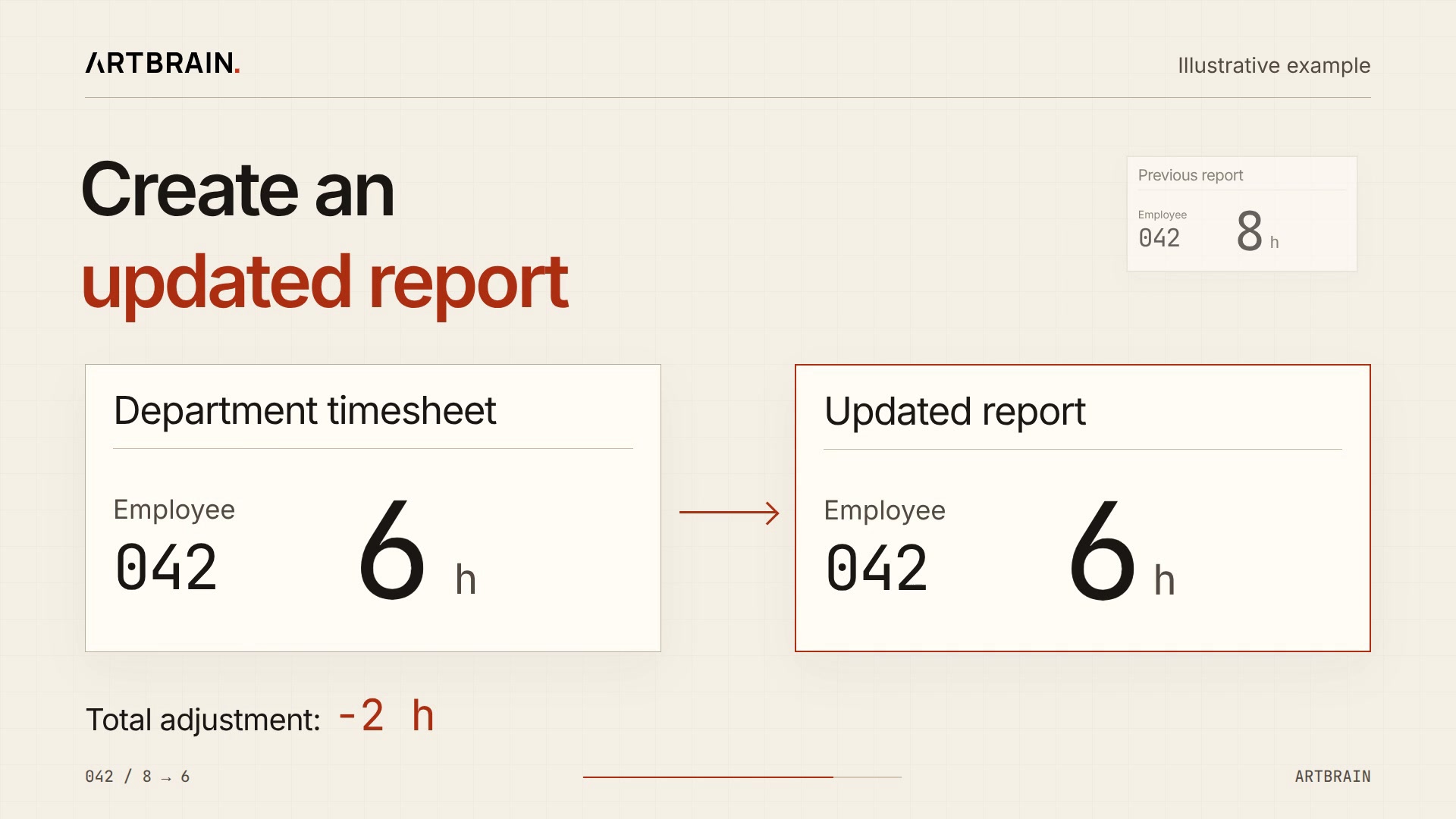
The video is unavailable. Refresh the page to try again, or keep reading: the entry changed from 8 → 6 h, but the old report still shows 8. After reviewing the correction, an updated report shows 6 hours. Try this example below.
Entry. The schedule for the 12th shows 8 planned hours. The person responsible in Department A receives confirmation that 3 hours were actually worked, while the basis for the remaining absence still needs clarification. They enter 3 hours and flag the unresolved part for review. The planned 8 hours do not enter the actual total.
Review. The HR specialist clarifies the supporting basis, agrees the appropriate category, and confirms the entry. The transfer on the 16th changes the department for subsequent records, but the identifier remains 042. The organisation's summary contains one person, rather than two employees with similar details.
Correction. After the summary has been prepared, confirmation arrives that another day was mistakenly entered as 8 hours instead of 6. The responsible person changes that particular day and records the explanation. The correction reduces the actual total by 2 hours; it does not add the entire row again. The recipient receives an updated report and can see what changed.
Monthly result. The report used to prepare calculations contains checked hours and the required categories. Departments receive data within their scope, while the person compiling the summary sees the required period across the organisation. Unresolved entries remain visible instead of appearing as confirmed attendance.
You can organise this process in spreadsheets or in a dedicated application. The difference is how many checks people perform manually and whether explanations remain attached to the record. The hours summary in this example is input for the next task, not a completed payroll calculation.
Illustrative example
Correct the entry and update the report
The example currently shows 8 hours. After clarification it should show 6; the correction has not been applied yet.
Initial entry: 8 hours. Awaiting review.
Initially: entry and report both show 8 h. After correction: entry 6 h, old report 8 h, a difference of −2 h. After updating the report: both show 6 h. This is a demonstration on this page only: no real records change, and no data is saved or sent.
Mistakes worth anticipating
Timesheet problems often arise at the handover between two people or two files. When everyone looks only at their own worksheet, a discrepancy can remain unnoticed until the combined report is needed.
- Duplicate employee. A transfer or a repeated import creates a second record for the same person. Check the internal identifier together with the date, rather than matching only a surname.
- Overwritten cell. Filling from the schedule again replaces an already clarified fact. A draft should not overwrite confirmed data without a specific decision.
- Lost late correction. A department updates its file while the responsible person keeps using the old summary. You need a way to submit the change and confirm that it was received.
- Blank day. There is no information, but a formula or report treats the gap as ordinary work. Missing information needs to remain a separate issue for review.
- Partial day. An overall absence category removes hours that were actually worked. The reviewer needs to see the details of the day, not just its label.
Check unusual values too: hours in the wrong reporting period, entries outside an employee's employment dates, and contradictory records for the same date. A system can show these situations to the responsible person. It should not quietly “correct” them to the most common value.
Check the handover of the result as well. A correct timesheet is of little use if someone exports an old version, omits departments, or sends a file the recipient cannot open. If an exchange fails, show the problem and allow the same report version to be sent again without entering the hours twice.
What automation can prepare, and what needs confirmation
Automatic filling can prepare a draft using agreed rules: the employee list, the reporting calendar, and information from available sources. A person checks exceptions and confirms what happened. If the draft uses a schedule, planned hours should remain planned until the appropriate check has taken place.
A custom system can include duplicate checks, missing-data prompts, department totals, a change history, and report preparation. These features remove repeated operations. They do not give the software authority to decide why someone was absent or guarantee that a payroll calculation is correct.
Manual entry remains a normal way of working. Not every confirmation comes from another application, and not every business needs devices that collect attendance data. A convenient screen for the responsible person and a clear review process can be more useful than a complicated exchange with several sources.
Before arranging an exchange, decide which source takes priority for each field. What happens when a spreadsheet and the HR record show different departments? How will someone notice that a source has not been updated? If an integration stops responding, old information should not look freshly confirmed.
For example, the employee list could come from an HR application, a manager could enter actual hours, and an HR specialist could clarify the status. Receiving the list again should not erase the hours or the reviewer's decision. For each boundary, agree what updates automatically and what is only submitted for review. A saved manual correction then survives the next exchange, and the responsible person understands why a particular field has its current value.
The useful outcome of automation is that the responsible person can see what has been prepared, what has been checked, and where questions remain. A fill button without that distinction merely moves uncertainty into the report more quickly.
- EntryActual hours
- ReviewBasis and status
- CorrectionReason and history
- ReportReviewed version
Automation helps prepare the data. A responsible person reviews exceptions.
Excel, an existing application, or a custom system
Artbrain offers custom time tracking system development for your workflow. It suits business owners, HR specialists and department managers who need to consolidate spreadsheets, control access and review corrections. We can develop a standalone electronic timesheet or a module for an existing HRM system: hours and status entry, roles, record review, summaries and the required export. The specific scope is agreed before development.
Stay with Excel if one agreed spreadsheet meets the need, access requirements are simple, and the responsible person can check the data without continually collecting versions. Organising fields and handover rules often removes the main difficulty. An increase in the number of rows alone does not mean you need custom software.
Consider an existing application when its standard workflow is close to yours. Try a partial day, a department transfer, and a late correction using an anonymised sample from your process. Check what a department manager can access, how the required data is exported, and whether your team can follow the application's rules without keeping workaround spreadsheets.
Custom development makes sense when the complexity comes from your particular workflow: different departments, separate roles, several sources, specific reports, or a review sequence. If standard software needs constant manual reconciliation alongside it, assess a system designed for that process. Look at the handover problems and people's needs rather than an arbitrary employee-count threshold.
The timesheet can be a separate module connected to your existing HR data. Replacing the whole accounting setup is not mandatory. Our HRM system development page explains the tasks a broader personnel system can support.
Our experience developing an electronic timesheet
In the Personnel and Time Tracking System project for an organisation, we implemented a timesheet with employee statuses, automatic filling, manual editing, and Excel export. That system also includes an organisational structure, employee cards, access permissions, reports, and Google Sheets integration.
For timesheets, this connection matters: each entry belongs to a particular employee and department, and people work with the data through their permissions. The technical description is in a separate article about the HRM project. Here, the key question is how your responsible person enters and checks time, and what result they pass on.
A different company needs its own agreed process. A correction history, a review sequence, restrictions on editing a reporting period, and an exchange with your accounting application could form part of a new development.
Moving to a system and checking the result
Start with one complete workflow that currently causes difficulty. For example, departments submit a month's entries, the responsible person clarifies exceptions, prepares a summary, and later receives a correction. Identify the roles, sources, and expected result for that workflow.
During a trial period, compare the system with checked source records. Matching only the overall hours is not enough: two errors could cancel each other out. Open individual days and check department transfers, absences, and changes made after the report was prepared. The person who normally receives the report should inspect its contents too.
- A department manager sees the required employees and cannot access another department's data.
- Drafts and confirmed entries are clearly distinguishable, and gaps are visible.
- A transfer creates no duplicate and does not alter the earlier affiliation of records.
- A correction changes the right day and appears in the updated total.
- The recipient opens the export and finds the required period, employees, hours, and categories.
- An unavailable source or failed export shows a problem while preserving the work already entered.
Agree in advance who owns the process after launch, where to report a problem, and what to do if information arrives late. People change positions, rules are clarified, and access needs review. The system needs to support this everyday work beyond a successful demonstration of the first month.
During the trial, designate one source for the final result. Comparing against the old spreadsheet is useful, but two independent “main” versions will recreate the confusion. Agree who resolves a discrepancy and how a confirmed correction is transferred. Before switching over, check that the responsible people can sign in with their own access, find the period, and complete their normal task without a developer's help. A short guide should explain those actions, including how to report a problem.
The cost of developing a time tracking system
The main drivers are differences between departments, the number of roles, the review procedure, data sources, and required report formats. A manually entered spreadsheet and a system with several integrations require different work, even when they cover the same number of employees.
Preparing existing data needs a separate assessment. If the files have no common identifiers, migration requires reconciliation. If the rules exist only in the responsible person's memory, they need to be described first. Separating this preparation from screens and data exchanges in a proposal makes it easier to understand which outcome you are paying for.
You can limit the initial scope to the first necessary workflow: entry, review, and monthly export. Select further features according to actual need. An agreed process and sample data support a meaningful estimate; the label “electronic timesheet” alone does not.
How to order an electronic timesheet for your workflow
Show where time is currently spent or changes are lost. An anonymised spreadsheet sample is enough to start: replace names with neutral internal identifiers and remove contact details, amounts, and personal documents. Keep the structure, typical entries, and an example of a difficult day so that the problem is clear.
- Who enters, checks, and receives the result.
- Your rules for hours, statuses, transfers, and corrections.
- Where the information comes from and which applications use it next.
- A sample of the required report and a situation the current process cannot handle well.
To order a custom electronic timesheet and request a development estimate, send Artbrain an anonymised sample, the required report and a description of roles. In the first discussion, we check whether an existing tool is enough and define the first module and integrations. The proposal should explain deliverables, stages and acceptance criteria so you can compare cost with the work you need.
FAQ
How does a timesheet differ from a work schedule?
A schedule describes planned work, while a timesheet records actual hours and absences for a period. If only part of a shift was worked, the record should retain those hours and explain the remaining time separately. A copied schedule needs a check against what actually happened.
When is Excel enough for a timesheet?
Excel is enough when there is one current version, clear rules, simple access needs, and a responsible person who can check entries without continually collecting copies. Assess development against workflow complexity, manual reconciliation and lost corrections, rather than employee count alone.
Can a system fill a timesheet automatically?
It can prepare data or a draft using agreed rules, check gaps and add up entries. The responsible person checks actual time and exceptions. Planned hours should not automatically become confirmed hours, and filling again should not erase corrections that have already been checked.
Do we need to replace our accounting application?
Not necessarily. A timesheet can be a separate module with manual entry, review and a report for the responsible person. If an exchange with an existing application is needed, its format and rules are agreed separately. An hours total is not, by itself, a completed payroll calculation.
How much does custom electronic timesheet development cost and how do I order it?
Cost depends on roles, review rules, reports, data sources and integrations. To order an electronic timesheet from Artbrain, prepare an anonymised spreadsheet without personal documents or amounts, the required report and a difficult example such as a transfer, partial shift or late correction. These inputs let us define the first module and estimate time tracking system development.